Bring it all together.
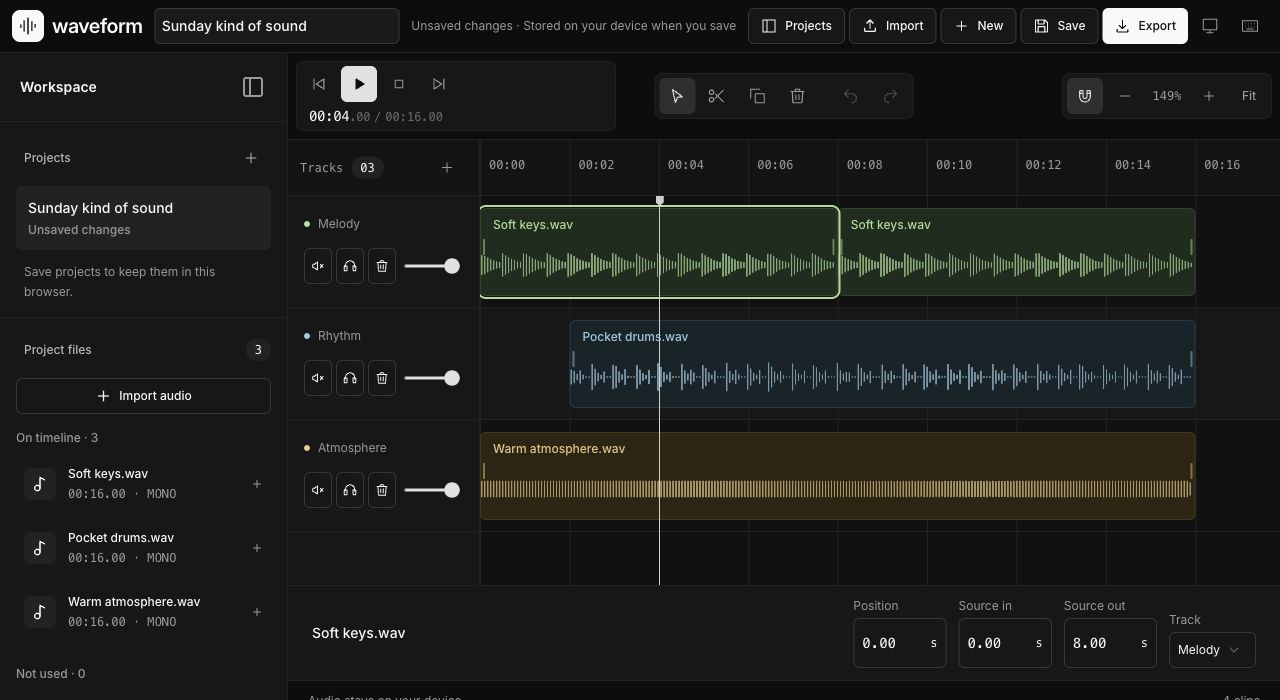
Layer multiple tracks, move clips, and find the right balance with volume, mute, and solo controls.
Audio editing, a little simpler
Trim, arrange, and mix your audio right in the browser. Just the tools you need, with room to focus.
A small toolkit, thoughtfully put together.
Layer multiple tracks, move clips, and find the right balance with volume, mute, and solo controls.
Trim the edges, split a clip, or dial in an exact cut. Your source audio stays intact.
Save your workspace locally in your browser and return to it later.
Export your mix as a stereo MP3. Choose the quality that works for you.
Why Waveform
Audio is processed on your device. No uploads, no audio-processing server.
Open a tab and start editing. No installation or account required.
Nondestructive trims and undo / redo let you experiment without losing the original.
Export a stereo MP3 at 128, 192, or 320 kbps. Ready for your next step.
On the roadmap
We're working on AI-powered processing pipelines to take more of the repetitive work out of audio editing. More details when they're ready.
Coming next. Not available in the current editor.
Waveform is an online audio editor for turning recordings, music, and ideas into a finished mix. Open the workspace in your browser, import your audio, and start editing without installing audio editing software. This free audio editor gives you practical controls for trimming, splitting, arranging, and mixing multiple tracks. No account is required, and audio processing happens on your device. Whether you are shortening a voice recording or preparing a soundtrack, the workspace keeps the steps approachable. You can focus on the sound, listen to your changes, and export a stereo MP3 when your project is ready.
Use Waveform as an audio trimmer to remove unwanted beginnings and endings from an audio clip. Trim audio around the section you want to keep, split a longer recording into smaller pieces, and move clips along the timeline. The original source remains intact, so you can revisit a cut instead of starting from scratch. Undo and redo help you compare different arrangements. For anyone looking for an accurate audio editor, exact cut controls and listening back work together: check the timing, preview the result, and adjust until spoken words or musical phrases begin and end where you intended.
Bring separate recordings into one project and use the audio mixer to balance their levels. Volume, mute, and solo controls help you hear how each track contributes to the whole. To merge audio into a continuous sequence, place clips one after another on the timeline; to combine sounds, overlap tracks and preview the mix. You might pair narration with background music, assemble several voice clips, or arrange sections of a song. Exporting combines the arrangement into one stereo MP3. Listen through before downloading, especially where clips meet, so unexpected gaps or overlapping sounds do not slip into your finished file.
A simple audio editor can make short creative tasks easier to finish. Use Waveform as a dance audio editor when you need to shorten rehearsal music, arrange song sections, or combine tracks for a routine. It also suits podcast excerpts, presentation soundtracks, and personal recordings. Start with the important section, trim the edges, and build the arrangement around it. Preview each transition and balance track volumes before exporting. Waveform provides a real audio editor workflow in the browser, with editable clips and multiple tracks, while keeping the interface focused on the tools available today.
The best audio editor depends on what you need to accomplish. Waveform is designed for browser audio editing with local processing and quick access to essential tools. If you searched for “audacity free audio editor,” Waveform is a separate product, not Audacity or an affiliated version. Consider your required features, supported formats, and project size when choosing a tool. MP3 and WAV are the safest import choices here; other formats depend on your browser. Finished projects export as stereo MP3 at 128, 192, or 320 kbps, letting you choose an output setting that suits your next step.
Your imported audio stays on your device throughout editing and export. Save stores one workspace in the current browser; saving another replaces it, and clearing site data removes saved work. Each input file can be up to 50 MB, with a total decoded audio limit of 256 MB. Sources and the timeline are limited to ten minutes. Smaller projects are easier to manage on phones. Open the editor, bring in your recordings, and make your next mix. Before closing the tab, save any arrangement you want to revisit. Keep a separate copy of your original recordings, and download your finished export so you can share it or use it in another project when needed.
A few useful answers
For quick edits, a simple audio editor online should let you import a file, trim or split clips, preview changes, and export without a complicated setup. Waveform offers these essentials in your browser, with no installation or account required. Start with a short recording to learn the timeline before arranging multiple tracks.
Open Waveform, import your recording, and find the audio clip you want to change. Trim its beginning or end, or split it into smaller sections and arrange the pieces on the timeline. Play back the result, adjust track volume if needed, and export a stereo MP3. Your audio is processed locally on your device.
The best online audio editor tools for your task should support the file formats and editing controls you need. For quick edits, look for an audio trimmer, clip splitting, a multitrack timeline, volume controls, and a straightforward export workflow. Waveform includes these tools for trimming, arranging, and mixing audio in your browser. Check project limits and export options before starting a larger project.
In the Waveform audio editor app, import an audio file, select a clip, and use the trim or split controls to edit it. Move clips to change their order, add tracks to combine recordings, and use volume, mute, or solo to check the mix. Preview your arrangement, save the workspace in this browser if you want to return later, and export the finished audio as MP3.
A free audio editor is a tool that lets you modify audio without paying for its available editing features. Waveform is a free audio editor for trimming, splitting, arranging, and mixing recordings in your browser. The current editor requires no subscription or sign-up and exports stereo MP3 files. Audio editing and export happen on your device.
Import the files you want to merge into Waveform and place their clips one after another on the timeline. Trim unwanted sections and adjust each track’s volume so the recordings sound balanced. Play through the joins to check for gaps or accidental overlap, then export the arrangement as one stereo MP3. Keep the full timeline within the ten-minute project limit.
To layer sound clips in Waveform, put them on separate tracks and move them so their timing overlaps on the timeline. For example, place background music beneath a voice recording. Use track volume to balance the layers, solo to hear one track, and mute to compare the mix without a track. Preview the combined sound before exporting a stereo MP3.
Import your music into Waveform, trim each song to the section you need, and arrange the clips in the order of your dance routine. Listen at every join and adjust clip positions to match the timing of your choreography. Balance track volumes, check the full routine, and export one MP3 for rehearsal. Keep your sources and arrangement within the ten-minute limit.
The best free audio editor depends on your project. For quick browser edits, Waveform offers trimming, splitting, multiple tracks, volume controls, and MP3 export without an account. If you need a desktop workflow or features beyond those available here, compare other editors against your requirements. Choose based on supported formats, editing features, privacy, and project limits rather than a single overall ranking.
Yes. Waveform is a free online audio editor for MP3 files. Import an MP3 from your device, trim or split clips, arrange tracks, and preview your changes. Export the result as a stereo MP3 at 128, 192, or 320 kbps. Each input file can be up to 50 MB, and sources and the timeline are limited to ten minutes.
Yes. Waveform lets you edit audio online for free with no sign-up or subscription required. Open the editor, import your audio, make your edits, and export an MP3. Your audio is processed locally in your browser, so you do not need to upload recordings to an audio-processing server.
No. Waveform is a separate browser audio editor, not Audacity or an affiliated online version. It provides trimming, clip splitting, track arrangement, volume controls, and stereo MP3 export. If you arrived here searching for “Audacity audio editor online,” use Waveform for the browser editing features described on this page and check that they meet your project needs.
You can edit a local audio file for your YouTube video with Waveform. Import the recording or soundtrack from your device, trim unwanted sections, layer music and speech on separate tracks, and export a stereo MP3 to use in your video workflow. Waveform does not import audio directly from a YouTube link; start with an audio file you already have on your device.
Yes. The current editor is free to use, with no account or subscription required.
No. The current editor imports, edits, mixes, and exports audio locally in your browser.
MP3 and WAV are the safest choices. Other input formats depend on your browser’s audio decoder. Finished mixes export as stereo MP3.
Use Save in the editor to store your current workspace in this browser. One saved workspace is retained; saving a new project replaces it. Clearing site data removes saved work.
Each input file can be up to 50 MB, with a 256 MB total decoded-audio limit and a 10-minute source and timeline limit. Smaller projects work best on phones.
Not yet. AI audio processing pipelines are planned for the next update. The current editor focuses on trimming, arranging, mixing, and exporting.